Welcome
In this guide, I'll show you how to install firmware on a new ESP32.
We'll use the DCC Servo Decoder project as an example, but the procedure is exactly the same for all the other ESP32 projects.
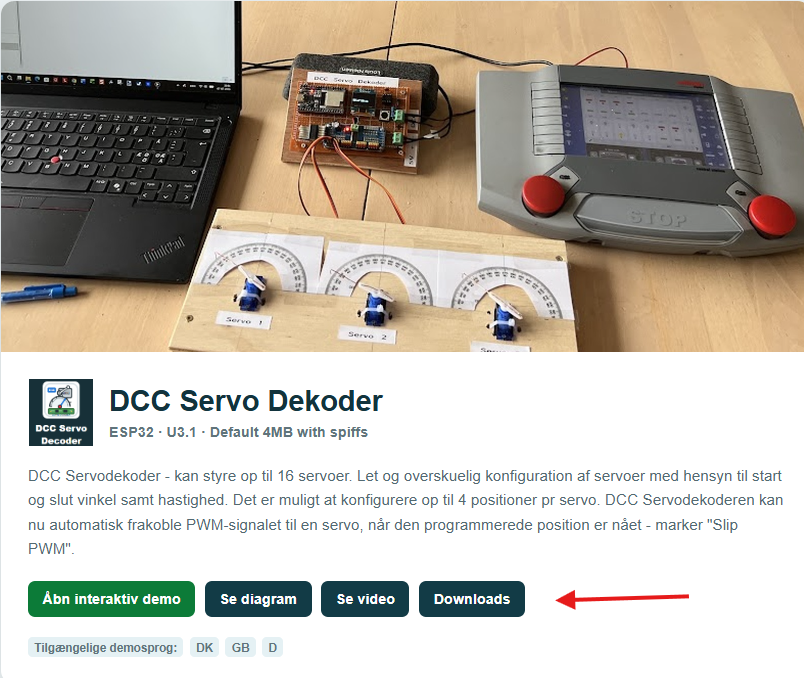
Choose your ESP32 projects
Choose projects and click on Downloads
Connect your ESP32 to your PC.
If possible - disconnect all external hardware from the ESP32
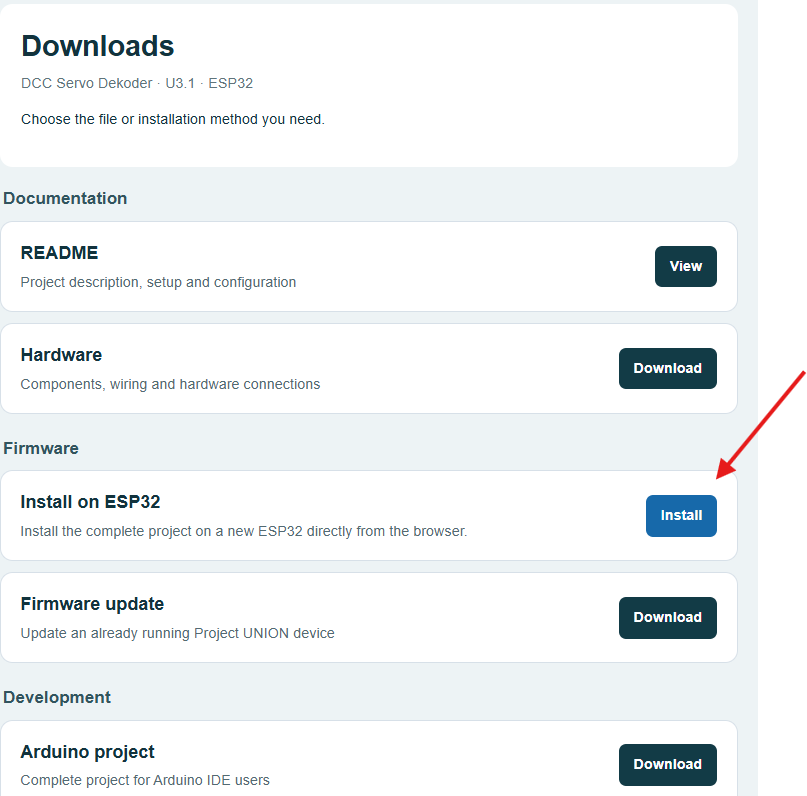
Firmware - Install on ESP32
Click on Firmware - install on ESP32.
Please note: ALL DATA ON THE ESP32 WILL BE DELETED !
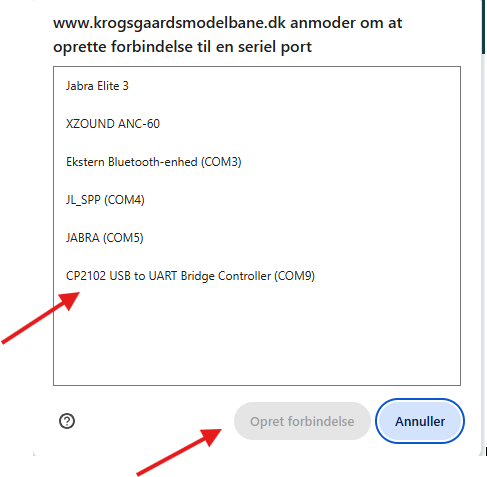
Select port
Connect your ESP32 to a USB port on your computer. In this example, it is connected to COM9, but the COM port number may be different on your computer.
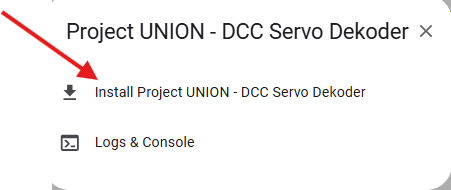
Select Install project
click on the button ....
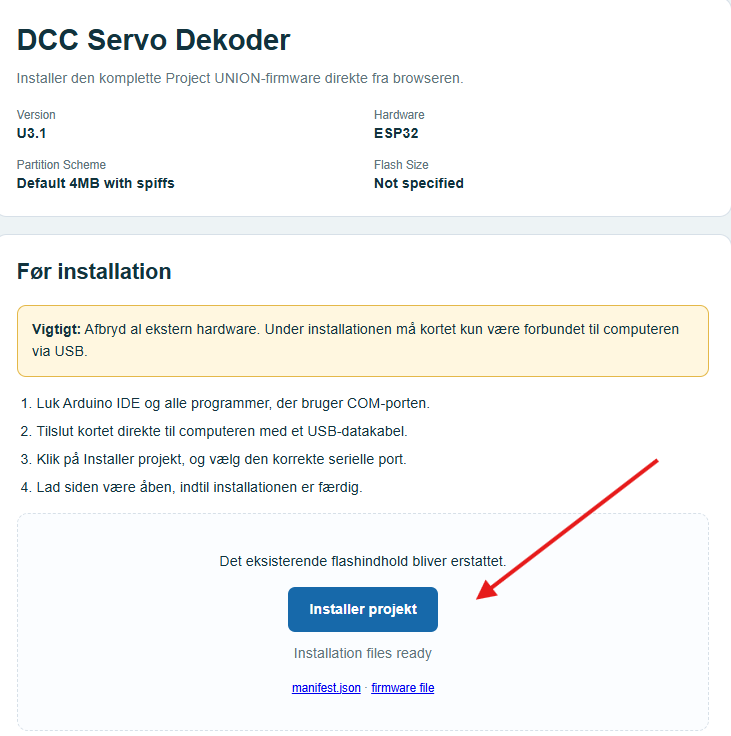
Select Install project ...
Select Install project
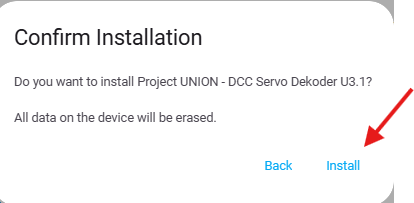
Confirm installtion - click on Install
Confirm - click on Install
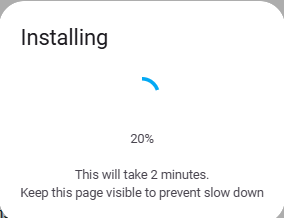
Installaton is running 0 - to 100 %
The installation will progress from 0% to 100%.
If any errors occur, please restart the installation procedure and try again.
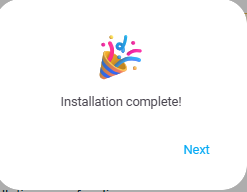
Complete
The installtion is complete - select Next
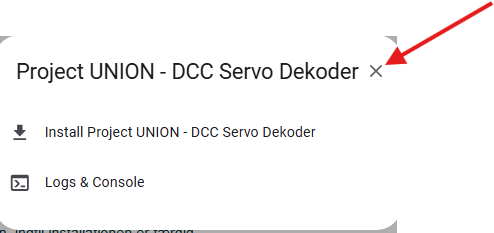
Close this Window
close this pop-up
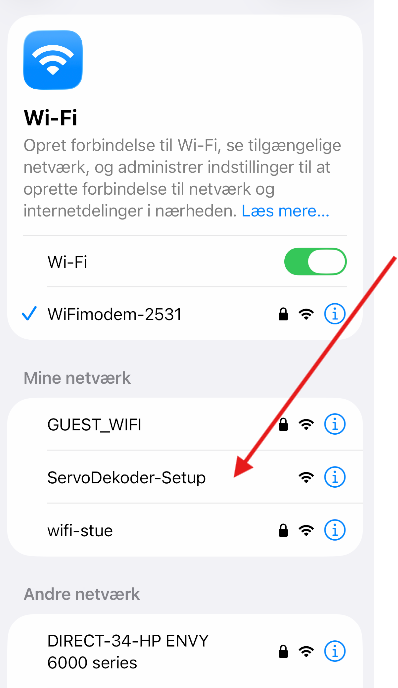
New Hotspot on your mobile phone
Check your mobile phone for a new Wi-Fi hotspot. When it appears, tap it to connect.
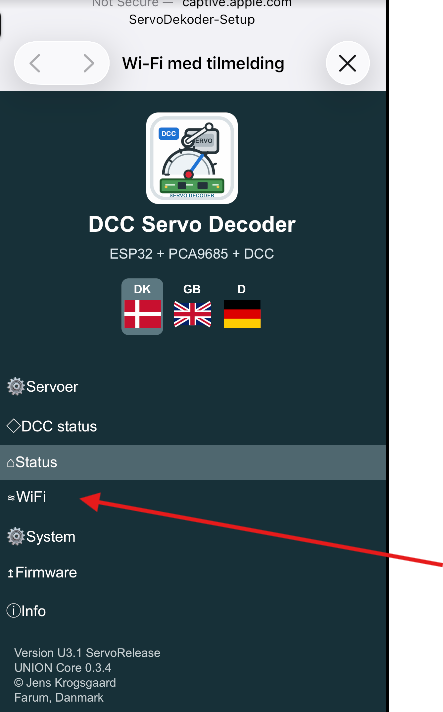
Web-config - select WiFI
Select WiFI
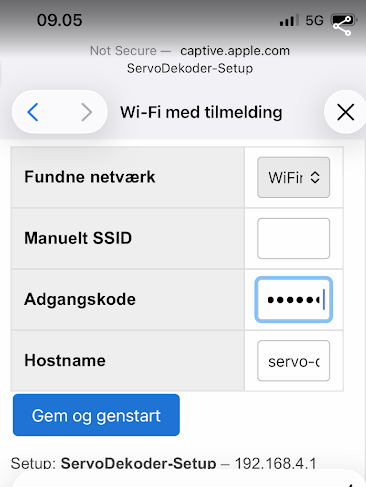
Type in WiFI credentials
Enter your Wi-Fi network name (SSID) and password. Then click 'Gem og genstart' = 'Save and Restart'.
Your ESP32 will restart and automatically connect to your Wi-Fi network.
WEB-config
Open a web browser.
Enter the following address:
http://servo-dekoder.local
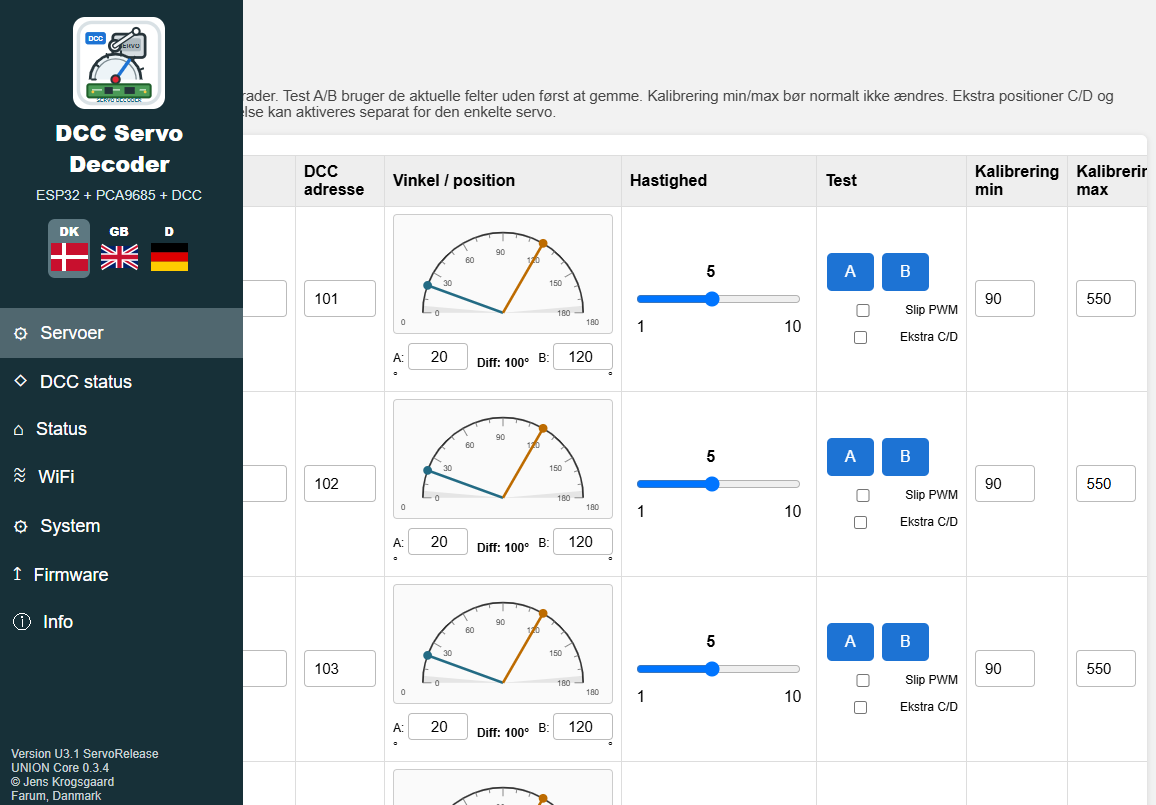
The configuration page for your ESP32 should now open, allowing you to configure the device from your browser.